
5 new Substack features explained in plain English
The template feature rocks my world!

Hi fellow Substack creator,
I’m writing to you in case you missed the new features that have recently been added to Substack.
There are five new features and two of them are definitely worth paying attention to.
New Substack features are sometimes more overwhelm-inducing than useful, but this latest batch is pretty darned good. One in particular is going to save me at least an hour a week - love it!
The new features are:
templates
drop caps
live video settings
notes scheduling
callout blocks
By far my favorite is the template feature. It’s way more useful than I thought it would be.
Here’s my breakdown of each feature plus links to learn more.
1. Templates
What it is:
This is NOT a feature that allows you to make a template of a whole post. That’s already possible using the “Duplicate” option in your draft post list.
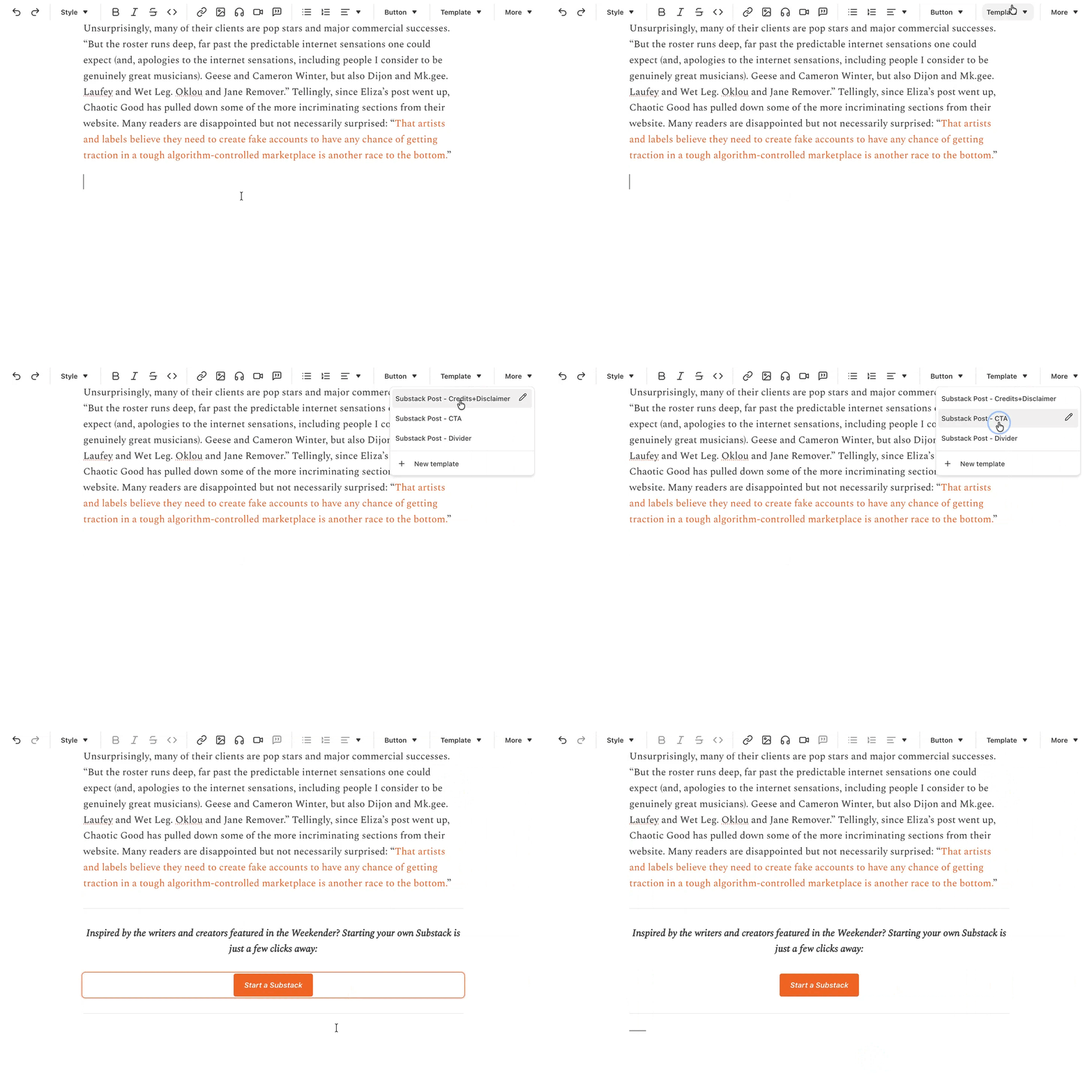
Instead, this new feature allows you to create and save custom paragraphs and buttons to add to your posts automatically. No more copy-pasting!
Templates can include chunks of text, custom buttons, buttons with captions, dividers, quote-formatted text and more.
I’ve used the template feature to make a bunch of different ‘subscribe with caption’ buttons with different messaging, plus some ‘share’ CTAs and some ‘P.S.’ notes for the end of each email.
In my other publication, I’ve saved all the elements that appear regularly, from in-post context to shoutouts to paying subscribers to instructions for how to find directories and more. I can now add them at the touch of a button any time I want.
Here’s a screencap of the template feature in action.
Who is it for?
Everyone! (I absolutely love it!)
Where to learn more:
Get complete instructions for using templates here: How can I add a template into my Substack post?
2. Drop caps
What it is:
A feature that allows you to have a fancy-looking large letter in the opening line of each post.

What it doesn’t do:
The drop cap is only visible to people reading on a web browser - you won’t see it in the app or in your email inbox.
The color of the drop cap is the same as your button color, you can’t choose a different color.
The drop cap only affects the first letter of each post, you can’t apply it to other paragraphs.
How to use it:
The drop cap is a universal setting that you apply to your whole publication, in ‘Website Editor’ settings. Full instructions here: How do I add a drop cap to my Substack post?
3. Live video settings
What it is:
Substack has introduced more sophisticated settings for creators who use Substack Live for video sessions.
The new features make it easier to schedule sessions, edit scheduling and use connected streaming platforms. In addition, people with more than one publication can now host lives from their secondary publications as well as their primary publications.
Who is it for:
These new settings are most useful for creators using Live in advanced ways, and those working with assistants. Low-tech and solo creators won’t notice any changes.
Where to learn more:
Learn more about advanced settings for Live here: How do I go live on Substack using my computer?
4. Notes scheduling
What it is:
Substack now has a built-in scheduling feature for Notes. This allows you to choose the time and day a note will be published.
Who is it for:
Anyone who uses Notes can benefit from this feature.
It’s especially great for people like me who are asleep on the other side of the world while most of you are reading Notes.
How to do it:
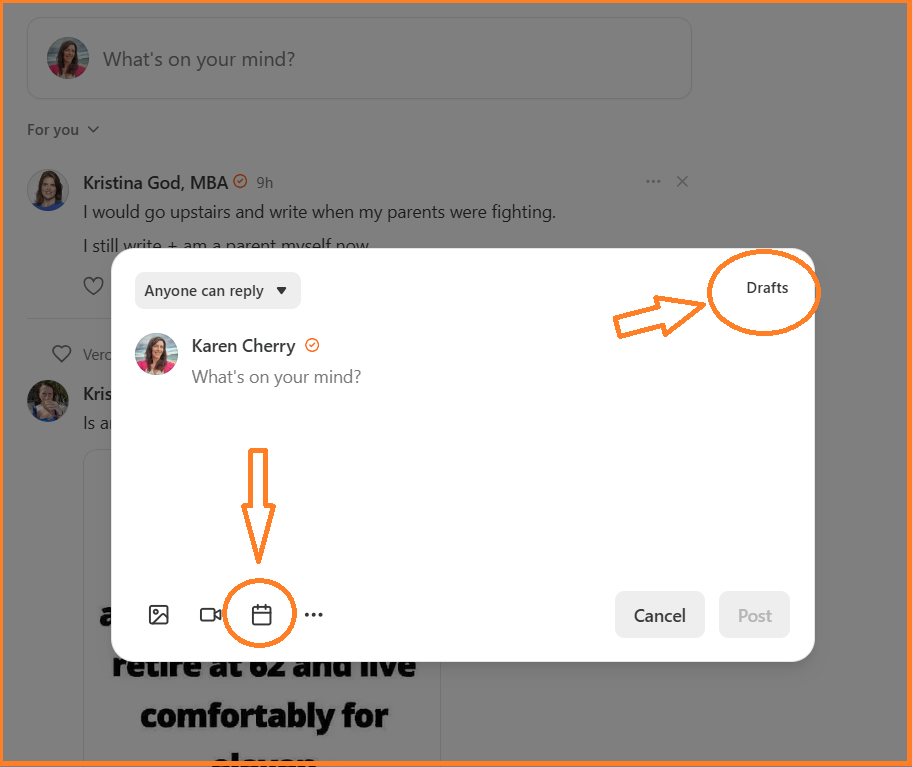
To schedule a note, first start making a note in the usual way. When you’re happy with it, click the calendar icon from within the note drafting window. You can then choose a day and time for it to be published. Finish by clicking ‘Schedule’.
To see all your scheduled notes, click the word ‘Drafts’ in the same window.
Where to learn more:
New to Notes? Learn how to leverage it to grow, even with a tiny subscriber list here:
How to use Substack Notes by Karen Cherry
5. Callout blocks
What it is:
Callout blocks are the newest addition to the post formatting menu.
Use this new feature to make a block of text appear highlighted, with a coloured background.
This sentence has been highlighted using the callout block feature.
Who is it for:
Callout blocks are for anyone who wants to introduce visual interest to their posts. Use them to draw readers’ attention to a key idea, a quote, or a promotion.
How to use it:
To add a callout block to a post, select a paragraph of text, then click the ‘quote’ icon on the formatting toolbar, then select ‘callout block’ from the dropdown list that appears.

Use it to add visual interest to a post and highlight important information.
Okay that’s it from me this week. Have a great weekend.
Karen
P.S. Want personalised, expert advice for your exact situation? Book a call with me for 60 minutes of my undivided attention and get a bestselling strategy that’s right for you and your audience. Book a call.
Really helpful and straight to the point. Thank you so much Karen ☺️
Useful. Thank you.