
How to Check Your Notes Performance
Even if you didn't get 309,678 new subscribers from one note...

This is not one of those posts. You know the ones… “I got 3,987 subscribers in 30 days with this simple Notes AI tool”. If I see another post like that, I swear I will throw my laptop out the window!
This post is not a humble brag disguised as a sugar-sweet, conversion-optimised “I was once where you are now, but look at how fantastic I am today” story. Blerk.
This post will actually help you.
It will show you how to figure out if any of your notes are actually working. And what to do with that information.
But first, I want to make sure you’ve got the basics covered.
If Notes is like a Martian landscape to you, if you’re new to Substack and don’t seem to be getting any eyeballs at all on any of your notes, check out my Substack Notes tutorial first.
It explains how Notes works and what you need to do to get your notes seen.
How to Use Substack Notes to Get More Subscribers

Update 2025: This post was written in 2023, but has been updated multiple times. The advice here remains pertinent in 2025 (and beyond). My wish for you is, as always, for you to enjoy your time on Substack without overwhelm and FOMO. Karen
On the other hand, if you are already using Notes confidently and you think your notes are working (a bit) already, read on. I’ll describe how to access a list of notes you’ve published and find out exactly how many subscribers each note generated.
How to get Notes stats (the easy way)
There are two ways to see which notes generated the most new subscribers. The first way is to view the impact of individual notes by clicking “View stats” on each note.
This is the hard way.
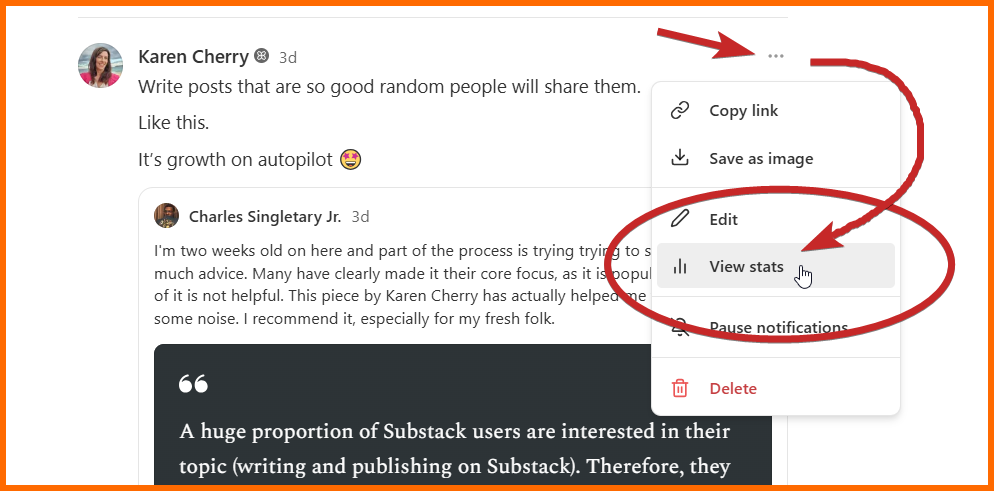
The second way - the easy way - is to access a whole list of notes and see which performed best.
To do that, navigate to the ‘Growth (New subscribers)’ section of your Publication Dashboard, then find ‘Substack’ in sources, then ‘Notes’ in the Substack section. Like so:
Publication dashboard > Growth > New Subscribers > Source > Substack (hit the chevron next to Substack) Notes (hit the chevron next to Notes)
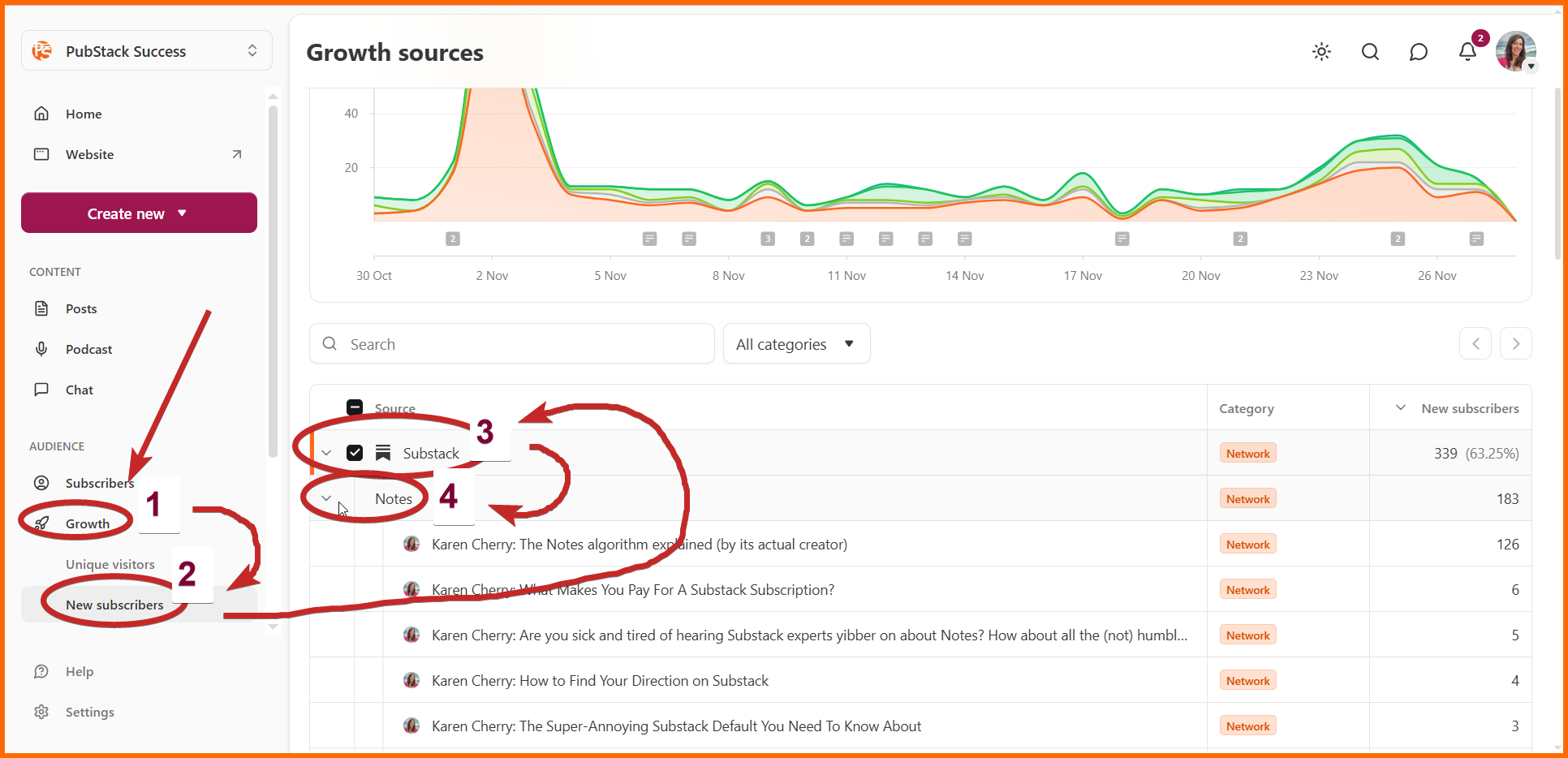
Once you’ve found the ‘Substack’ part of the ‘Sources’ part of the ‘Growth (New Subscribers)’ part of your dashboard, click on the chevron arrow (‘>’) next to Notes to open a list of notes you’ve published.
The default sort order is the best performing post first. That is, the note at the top of the list is the one that brought the most new subscribers.
From the same screen, you can also choose different filters to see where your internet traffic (‘Unique visitors’) comes from, and view stats from shorter or longer time periods.
What to do with this information
There’s no point in looking at stats if you don’t use them to inform your strategies.
But when it comes to strategies, it’s easy to overthink things. So I’m not going to give you a pile of complicated advice here.
The simplest (and probably most effective) thing you can do with this information is to reuse Notes that performed well.
Will people care? A few might, but honestly, most won’t even notice. And (weirdly) Substack serves up months-old notes every now and then anyway.
To reuse an old note, copy and paste the contents of the note into a spreadsheet or Word doc, add the date you first posted it, and a few months later, paste it into a new note and publish. Simple.
BTW, If you’re posting a lot of notes on Substack - or if you know you should be posting a lot - you are going to love love love Finn Tropy’s Substack Notes Pro Studio ($79) or his Simple Notes Scheduler ($29)1. These let you batch create notes, add images and video, and schedule them for the best-performing time slots, saving you hundreds of dollars of time and brain-space.
The second thing you can do with this information is use it to learn which style of Notes brings the most subscribers. For me, it’s Notes that contain links to posts with very clear and actionable headlines.
Use this information to judge whether to spend time making more notes in that style or not.
Pitfalls to avoid
It’s great to know which notes do best for getting new subscribers. But don’t forget, Notes is much more than a place to get new subscribers.
Notes is also for supporting other writers, sharing their work and engaging with their notes. When you do this you add awesome karma, love and good vibes to Substack (and expand your own reach in the process).
Notes is also the perfect place to strengthen the relationships you have with existing subscribers, which is, after all, what Substack is really about.
With that in mind, don’t go all-in on ‘subscription-generating notes’ at the expense of other styles of Notes, just because they don’t bring 587 new subscribers. They might just be special magic that encourages your readers to take the next step with you.
Key takeaways
There is a way to compare the performance of your notes in the Substack dashboard. Do this by accessing information in the ‘Growth (New subscribers)’ section of your Publication Dashboard.
Use the information to discover which notes brought you the most new subscribers, so you can replicate the style with future notes and (easy win!) repost the best performing notes again in future.
From the same part of your dashboard, you can also see where your internet visitors are coming from.
Don’t forget that Notes is not only for getting new subscribers. It’s also for supporting other writers, finding new publications to read and strengthening the relationship with your existing subscribers.
And, if you want to use less brain-space and save time with Notes, batch-create and schedule everything in one go with one of Finn’s Note scheduling tools, Substack Notes Pro Studio ($79) or Simple Notes Scheduler ($29).
That’s it from me for this week.
Thanks to Derek Hughes for teaching me how to access the notes list from my dashboard.
Until next time,
Karen
P.S. If you think you can’t see ‘Notes’ as a source of growth, check the instructions above really carefully (it’s not intuitive). You have to hit the ‘>’ next to Substack in the growth sources list to find Notes, then click the ‘>’ next to Notes to see the performance of each note.
These are affiliate links, meaning I earn a small commission if you purchase, at no extra cost to you. I use Finn’s tools myself and can recommend them. Best of all, they are one-off purchases, not ongoing subscriptions (gotta love that!)
I do feel like I’m posting into the void but I’m going to put the strategies I’ve read here into action. Thank you Karen.
Fantastic information! Thank you!